
How to Capture Frames from a YouTube Video
Capture one frame by hand
- Set the quality first: click the gear icon on the video, then Quality, then 1080p or higher.
- Pause on the moment you want. Press k or the space bar.
- Fine-tune it: with the video paused, press . (period) to go one frame forward and , (comma) to go one frame back.
- Move your mouse off the video so the controls fade out.
- Take the screenshot: Windows key + Shift + S on Windows, Cmd + Shift + 4 on a Mac.
This is fine for one or two frames. For a whole tutorial it gets slow, and it's easy to miss the moment that matters.
Capture a frame every few seconds
- Add FrameCap to Chrome from the Chrome Web Store. It's free, with no account.
- Open the YouTube video and click the FrameCap button on the video.
- Pick Pictures only, or Pictures and words if you also want the transcript.
- Set the time between frames, from 1 to 30 seconds.
- Pick the part: the whole video, from where you are, or your own start and end.
- Click to capture. For AI chatbots you get a PDF of the frames. In AI Agents mode you get a ZIP of PNG or JPG pictures.
How many frames you get
Divide the length of the part by the time between frames. A 10-minute video with a frame every 5 seconds gives 120 frames. Every 2 seconds gives 300.
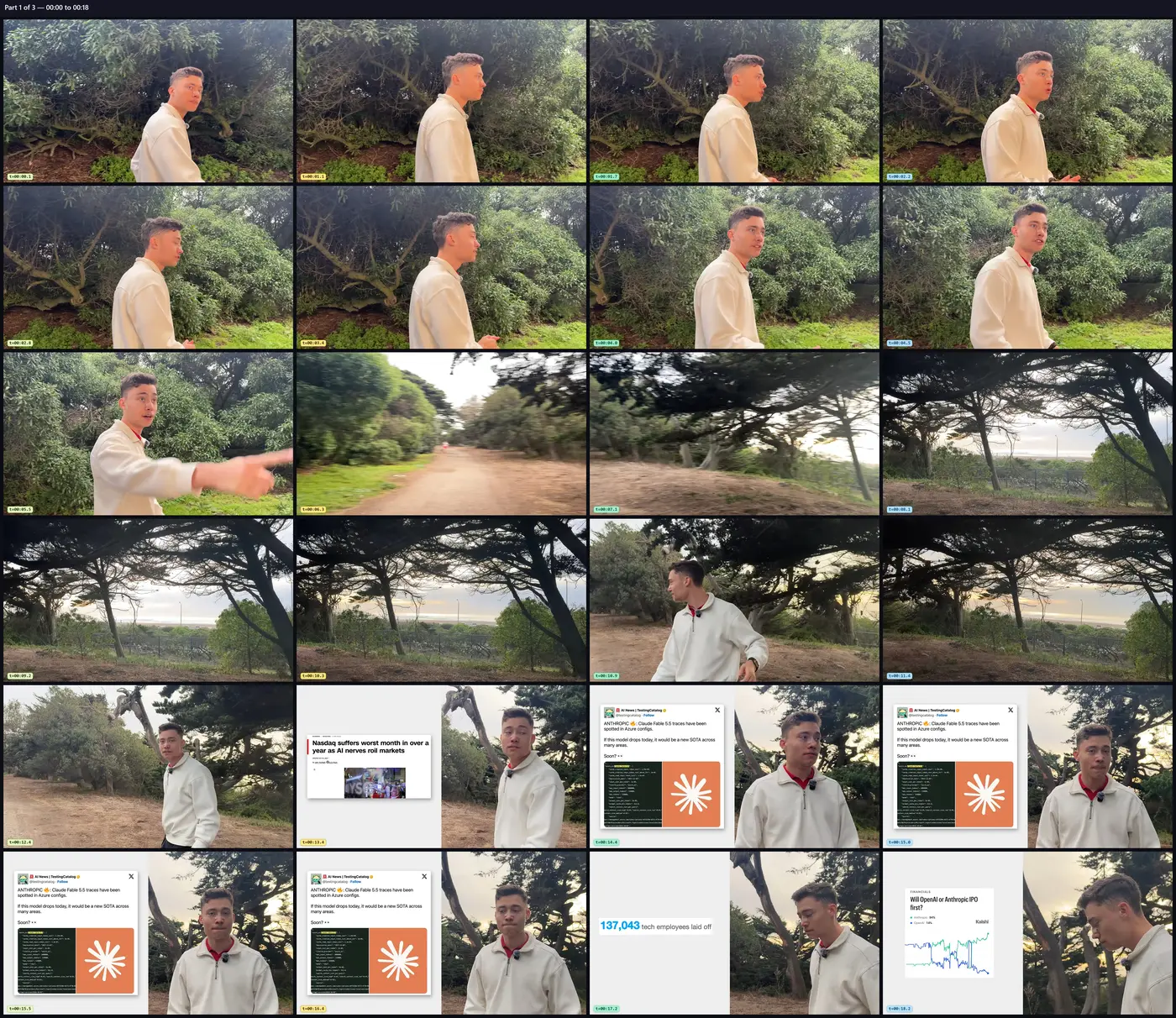
FrameCap puts several frames on each picture, 2, 4 or 6 in the free version and up to 24 in FrameCap Pro. Each frame has its time in the corner, so you always know where it came from.
How to get sharp frames
A frame is only as sharp as the video plays. In the free version, set YouTube to 1080p or higher before you start. FrameCap Pro switches the video to the picture size you picked, 1080p or 4K, while it captures, then gives YouTube its own choice back.
For code and small text, turn on Sharpen text and code in FrameCap's settings.
Use frames fairly
Frames from someone else's video still belong to them. Use them for your own notes, study and work, and link to the video when you share what you learned.
FAQ
Is capturing frames from YouTube free?
Yes. FrameCap's free version captures up to 40 minutes at a time and 2 hours a day, with no account and no card.
Can I capture frames from YouTube Shorts?
Yes. The free version takes up to 5 Shorts a day.
Do I need to download the video?
No. You keep watching on YouTube, and FrameCap saves only the pictures you asked for.
Can I capture frames from a video on my computer?
Yes, with FrameCap Pro. It takes MP4, WebM and MOV files.