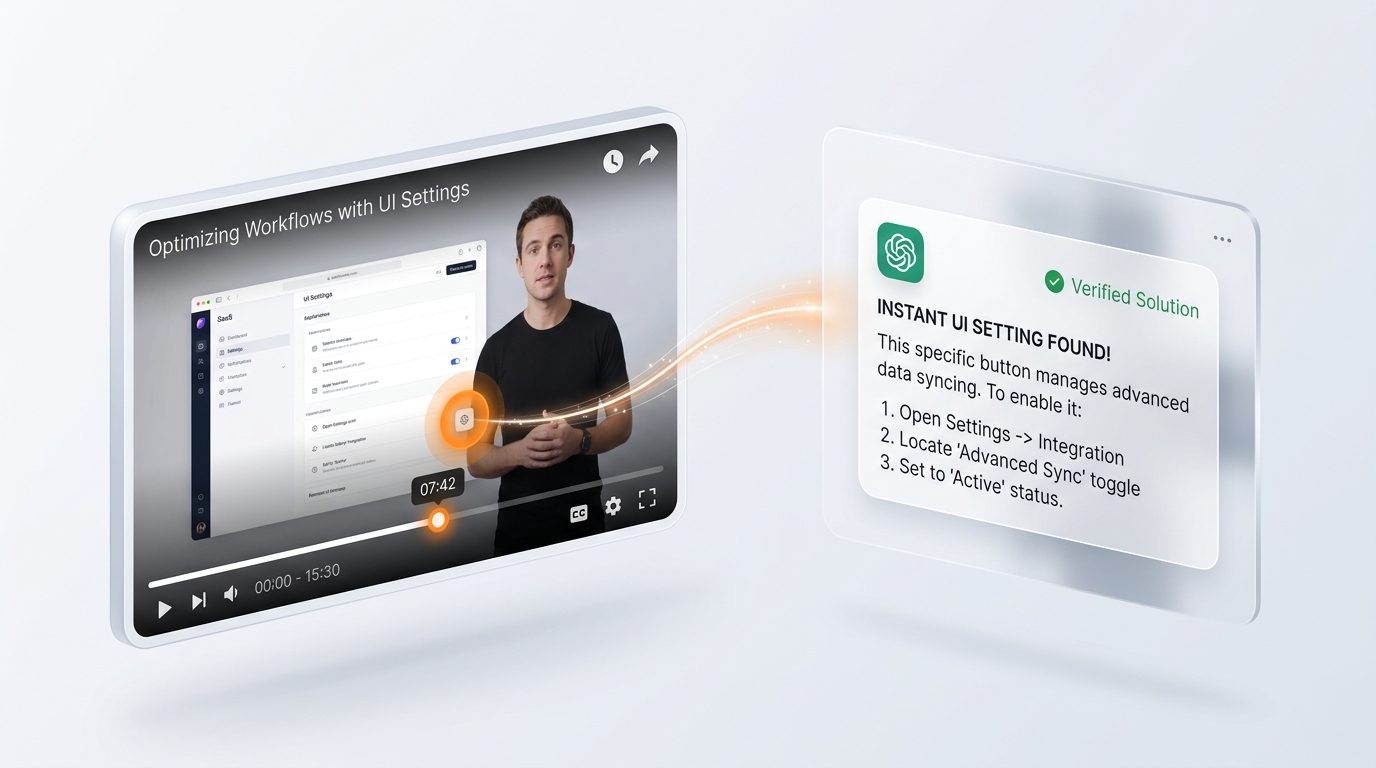
When you ask ChatGPT or Claude about a YouTube video, it only reads the spoken transcript—it cannot see the screen. FrameCap snaps the key visual moments so your free AI can see the exact settings, recipes, formulas, and slides.
 ChatGPT
 Claude
 Gemini
 Perplexity
And only the first one needs you.
Click the FrameCap button on any YouTube video—whether it's an Excel guide, terminal commands, or deeply technical work.
FrameCap collects the most important visuals, slides, and stitches them into one neat photo album right inside your browser.
ChatGPT, Claude, or Gemini opens with the picture ready. Summarize, explain, or do anything you need with the exact context loaded.
When someone in a video says "click right here," regular AI has no idea where "here" is. See the difference:
The person types a formula on screen and hits Enter, but never reads out the brackets, commas, or symbols out loud.
FrameCap shows your AI the screen, so it reads the exact line directly off the video for you.
=XLOOKUP(A2, Data!A:A, Data!D:D, "Not Found")"
No manual downloading, no screenshots, and no file uploads. FrameCap bridges YouTube directly to your favorite AI.
FrameCap captures the important moments from the video and links them with the speaker's words. You click once, and your AI opens with the complete picture ready to chat.
Where AI eyes make the critical difference. Real scenarios where spoken audio leaves you guessing, but visual notes give your AI total clarity.
Watching a complex tutorial—like a tricky terminal setup or building a website—and hit an unexpected error while trying it yourself? Ask your AI to watch the video and solve it for you.

When a YouTube creator writes code or terminal commands, your AI extracts the exact text so you never have to pause and retype.
Turn blackboard handwriting, math formulas, and slide decks into clean study guides and exam notes in seconds.
Grab complex spreadsheet formulas, data tables, and software settings without squinting at blurry paused frames.
Spot the exact checkbox or setting the creator clicked to solve your computer glitch without rewinding 5 times.
Slide to choose how many tutorials or guides you watch per week.
Everything you need to know about how FrameCap works and keeps you safe.
ChatGPT and Claude cannot browse the web and watch videos like a human. When you paste a raw link, they either decline or make guesses based on the video title. FrameCap captures the actual video keyframes and fuses them with the transcript so your AI can truly "see" what is on screen.
Yes, 100% free. No subscriptions, no credit cards, and no developer API keys required. It runs locally on your computer using Chrome's built-in canvas and caption tools, so there are no expensive server costs.
Never. FrameCap uses Chrome's strict activeTab permission. It can only see the specific YouTube video tab you are currently viewing, and only when you click the extension. It has zero access to your passwords, history, or other tabs.
Transcripts only capture spoken audio. If a creator says "click here" or silently types terminal commands or shows a complex chart, transcripts are completely blank. FrameCap pairs spoken words with 12 visual keyframes so your AI has full context.
Simply open any YouTube video and click the FrameCap button in your browser. Click "Send to AI"—your AI chat opens with the storyboard image and transcript already attached.
Yes! FrameCap evenly samples 12 keyframes across any video length, so whether it's a 5-minute quick tip or a 2-hour university lecture, your AI sees the whole story.
When installing, Chrome shows a standard security notice stating "FrameCap can read and change your data on youtube.com". This occurs because FrameCap needs to capture frame snapshots directly from the active HTML5 <video> player canvas and read video timestamps. FrameCap never monitors other tabs, never accesses passwords, and transmits zero data to external servers.
Click the download button above and extract framecap-extension.zip to a folder on your computer.
In Chrome, go to chrome://extensions and toggle Developer mode in the top-right corner.
Click Load unpacked (top-left), select the extracted folder, pin FrameCap ✦, and open any YouTube video!
Prefer 1-click install from the Chrome Web Store? Enter your email to be notified when Google review approval completes:

The direct developer package is ready for immediate use. 100% free, runs locally in your browser with zero external servers.
framecap-extension.zip file on your computer.chrome://extensions and toggle Developer mode on (top-right).