
Can ChatGPT Watch YouTube Videos?
What happens when you paste a YouTube link into ChatGPT
As of October 2026, OpenAI doesn't offer a YouTube app for ChatGPT. When you paste a link, ChatGPT works from whatever text it can find about the video: the title, the description, and sometimes the captions. It does not play the video, so it can't see anything that was only shown on screen.
That matters most for tutorials. A creator says "type this" and the command is only on screen. They click a setting without naming it. They show a formula, a chart or a slide. None of that is in the words.
Can't I just upload the video file?
ChatGPT accepts video uploads, but OpenAI's own help page says it may not analyze the entire video or accurately interpret its audio. You would also have to download the YouTube video first. Giving ChatGPT clear frames plus the transcript is more reliable, and it works on the free plan.
How to make ChatGPT see a YouTube video
- Install FrameCap from the Chrome Web Store (free, no account).
- Open the YouTube video and click the FrameCap button on the page.
- Pick what to capture (pictures and words is the default) and how often (a frame every 1 to 15 seconds).
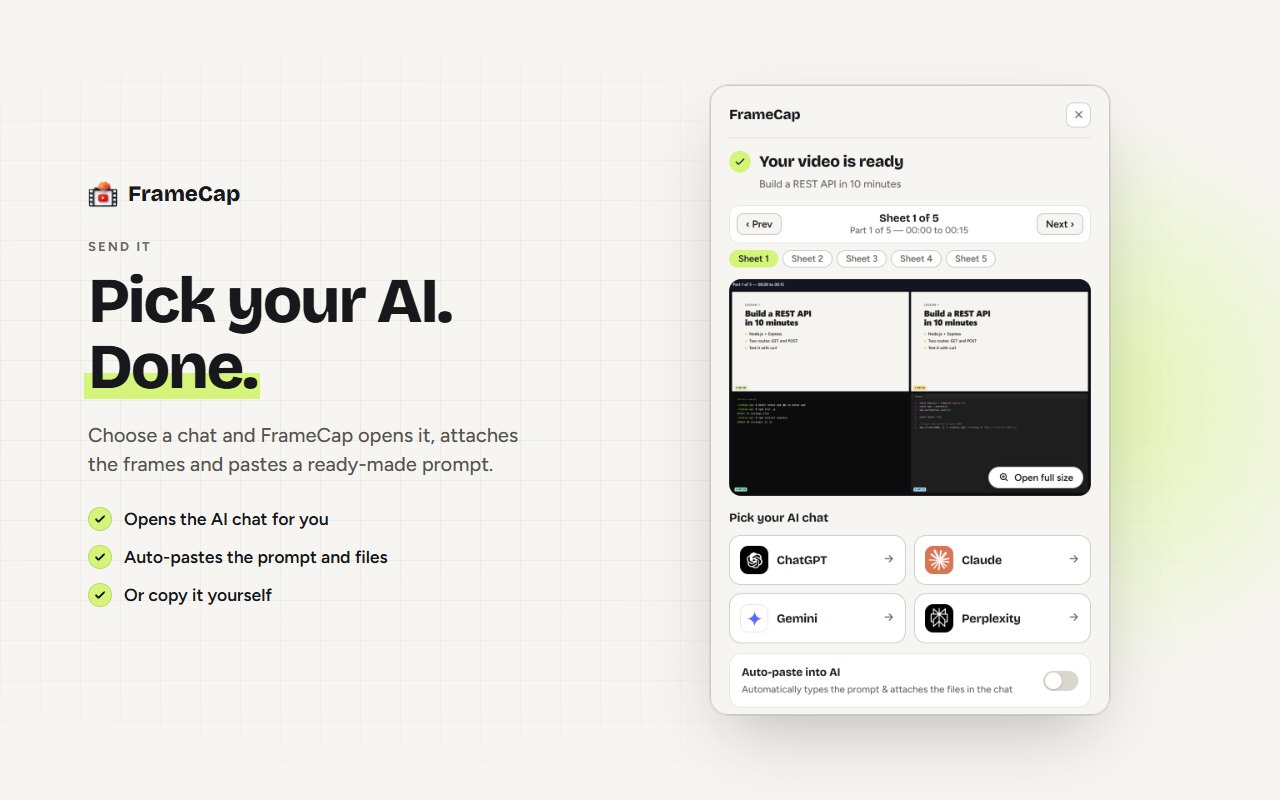
- Click Send to AI and choose your AI. FrameCap opens it with a PDF of the frames, the transcript and a ready prompt.
- Ask your question, for example: "What command is typed at 4:12?"
The frames go in as one PDF with only 2 or 4 frames per page, so small code and text stay readable even after ChatGPT shrinks the images. Each frame carries its timestamp, so ChatGPT can tell you exactly when something happened.
ChatGPT vs Claude vs Gemini on YouTube (October 2026)
- ChatGPT: no YouTube app. It works from text it can find, not from the video itself.
- Claude: claude.ai can't play videos and doesn't accept video uploads (documents and images only). See Can Claude watch YouTube videos?
- Gemini: can summarise public YouTube videos from a link when you're signed in. If you want the same frames-plus-transcript input in every AI, FrameCap works the same way in all of them.
Limits to know
- FrameCap works on YouTube only, for now.
- Videos up to 60 minutes. Live streams aren't supported.
- The transcript needs the video to have captions (auto-generated captions work). FrameCap doesn't do speech-to-text yet.
- Your AI still does the thinking, within its own plan's upload limits.
FAQ
Does this work with the free version of ChatGPT?
Yes. FrameCap sends a PDF of the frames plus the transcript, which free ChatGPT accepts. Free plans have their own upload limits, so very long captures may need a bigger gap between frames.
Why does FrameCap send a PDF instead of separate images?
AI chats shrink large images. A PDF with only 2 or 4 frames per page keeps small code and text sharp, and it counts as one upload.
Is FrameCap free?
Yes. FrameCap is free for YouTube videos, with no account and no API key. Everything runs inside your browser.