
How to Extract Slides from a YouTube Video
Why YouTube has no "download slides" button
On YouTube, slides are just part of the video picture. There is no slide file to save, so to get them you either find the original deck or capture frames of the video.
Check the description first. Many speakers link their slides (a PDF, Google Slides or SlideShare). That copy is always the cleanest. If there is no link, capture the frames.
How to extract slides with FrameCap (step by step)
- Install FrameCap from the Chrome Web Store (free, no account).
- Open the lecture or talk on YouTube and click the FrameCap button on the page.
- Choose Pictures only, or pictures and words if you also want what the speaker said.
- Pick a gap shorter than the shortest slide. For most talks a frame every 5 to 10 seconds is enough. For fast slides, use 2 or 3 seconds.
- Capture the whole video, or only the part with the slides (set a custom start and end time).
- Click Send to AI to open ChatGPT, Claude, Gemini or Perplexity with a PDF of the frames, or switch to AI Agents mode to download a ZIP.
Every frame carries its timestamp, so you can always jump back to a slide in the video.
Turn the frames into a clean slide list
FrameCap captures by time, so a slide that stays on screen for a minute shows up in several frames. Your AI can merge them. Paste a prompt like this one:
Go through the frames in order. List every distinct slide once: its timestamp, its title, the text on it and a one-line summary. Skip frames where the slide didn't change. Mark anything you can't read clearly.For a lecture you can also ask for study notes, a quiz, or a table of every formula shown on the slides.
What you get
- AI Chatbots mode: one PDF with 2 or 4 sharp frames per page, plus a ready prompt for your AI.
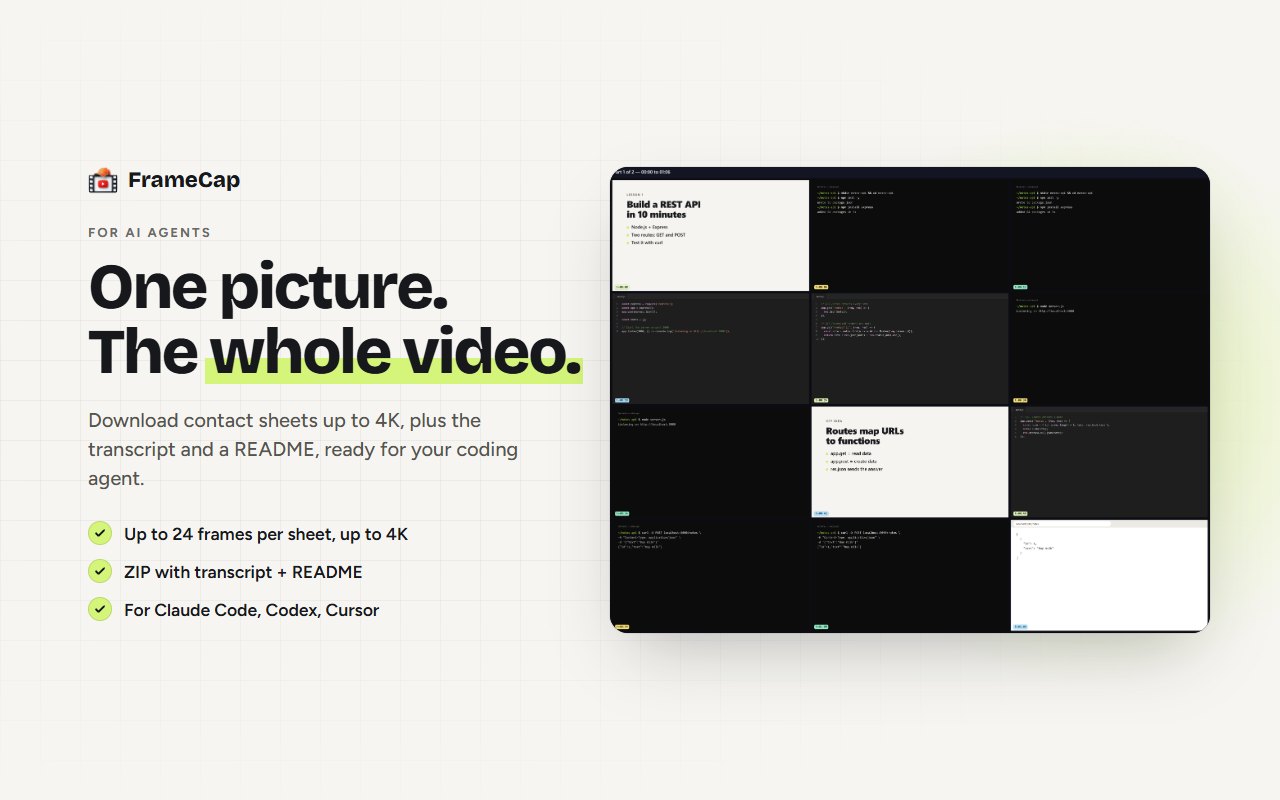
- AI Agents mode: a ZIP of frame grids (2 to 24 frames each, 1080p or 4K, PNG or JPG), the transcript and a README.
- A timestamp on every frame.
To be clear about what it doesn't do: FrameCap doesn't save each slide as its own image file, and it doesn't detect slide changes by itself. It captures at the gap you choose, and your AI does the sorting.
Other ways to get slides from a YouTube video
- The description and comments. Look for a link to the speaker's own deck.
- Screenshots by hand. Pause on each slide and take a screenshot. Fine for five slides, slow for a long lecture.
- Scene-detection tools. Desktop tools such as ffmpeg can save a frame every time the picture changes, but they need the video file on your computer, and downloading YouTube videos can break YouTube's terms.
- FrameCap. No download and no pausing. It captures in your browser, and your AI lists the slides.
Limits to know
- FrameCap works on YouTube only, for now.
- Videos up to 60 minutes. Live streams aren't supported.
- The transcript needs the video to have captions (auto-generated captions work). FrameCap doesn't do speech-to-text yet.
- No automatic slide detection: pick a gap that is shorter than your shortest slide.
- AI can misread a small character on a slide. Check important numbers against the video.
FAQ
Can I extract slides from a YouTube video for free?
Yes. FrameCap is free, with no account and no API key. It captures the frames in your browser, and your AI, including free plans, lists the slides.
Does FrameCap download the video?
No. It captures frames from the video already playing in your browser tab. Nothing is downloaded, and nothing is sent to a server.
Can AI extract the text from the slides?
Yes, if the frames are sharp. ChatGPT, Claude and Gemini read slide text from images well. Ask them to list each slide's title and text with its timestamp, and check anything important against the video.
Can I get the slides as a PowerPoint file?
Not directly. FrameCap gives you the frames as a PDF or as image grids. You can ask your AI to rewrite the slide text as an outline, then paste it into PowerPoint or Google Slides.